Installing EX-Toolbox
Installing EX-Toolbox on an Android phone or tablet
- Open the Play Store app on your Android phone or tablet and search for 'EX-Toolbox'. Or use the QRCode below

-
Once installed, open EX‑Toolbox and it will go through the initial setup wizard where it will ask for one permission, and for which which theme you would like to use.
-
After you complete the setup wizard, you will be shown the 'Connection' Screen.
Installing EX-Toolbox on MS Windows & macOS
EX-Toolbox and all the Android based throttle apps listed can be run on Microsoft Windows PCs and Apple Silicon Macs using BlueStacks.
BlueStacks
The BlueStacks app allows you to install and run most Android apps on most recent Windows PCs.
It has the advantages of:
-
Works on most recent Windows PCs and Apple Silicon Macs
-
User Friendly installation of apps
-
Allows you to run multiple instances of same app at the same time
Disadvantages include:
- Has advertisements
Follow the instructions on their site to install BlueStacks, then get the appropriate .apk to install the throttle app you want. e.g. The Engine Driver .apk is available from the EX-Toolbox Github page.
Connecting to your Command Station
Please remember that to connect to a Wifi EX-CommandStation on the correct WiFi network.
-
If you are running your EX-Commandstation in Access Point (AP) mode, you must switch your phone or tablet Wifi to the access point / Wifi network/SSID that the EX-CommandStation has created.
-
If you are running your EX-Commandstation in Station mode, you must switch your phone or tablet Wifi to your hopke access point / Wifi network/SSID. that same one that the EX-CommandStation is connected to.
Starting EX-Toolbox
Other than the very first time you start EX‑Toolbox, when the app opens you will be shown the 'Connection' screen.
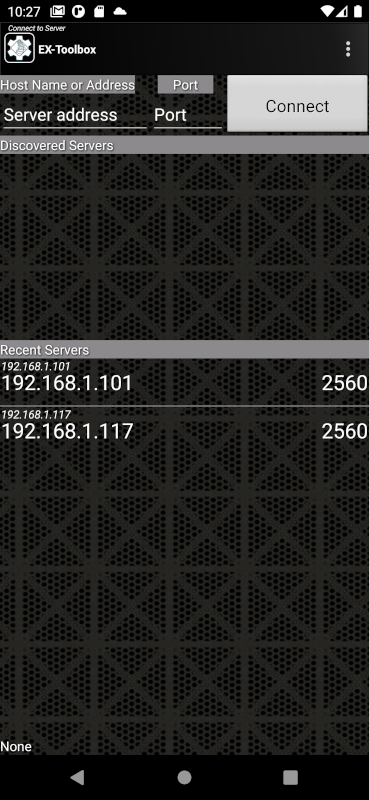
There are three ways you can select a EX‑CommandStation to connect to:
-
IP Address and Port
To find your EX-CommandStation's IP address and Port refer you original setup or, if you have a OLED screen on your command station the details will be displayed on it. The port will normally be 2560. -
Discovered Servers
If the server you want to connect to is in the list, simply click on it and you will be taken to the 'CV-Programming' screen. -
Recent servers
If the server does not appear in the recent list try one of the other two methods. Your server not appearing in the recent list is not necessarily a problem and there can be a number of reasons why.
Notes
-
Important! EX‑Toolbox can only connect directly to an EX‑CommandStation or JMRI's 'DCC++ over TCP Server', however JMRI, the EX‑CommandStation and other devices and apps can, or do, advertise as "WiThrottle" mDNS services. EX-Toolbox cannot determine which are actually direct connections to an EX‑CommandStation or JMRI's 'DCC++ over TCP Server'.
-
If you only ever connect to one EX‑CommandStation you can effectively bypass this screen by setting the 'Auto-Connect to WiThrottle Server?' preference.
Follow the User Guide