Connecting WiFi Throttles via USB
WiFi throttles can't normally connect to an EX-CommandStation via USB, however it is possible to temporarily create a USB to IP connection on your PC using tools like socat or SerialToIPGUI (for windows).
Using
Using socat in Linux
socat TCP4-LISTEN:2560 /dev/ttyUSB0,b115200,raw,echo=0
or (to provide more information)
socat -d -d -d TCP4-LISTEN:2560 /dev/ttyUSB0,b115200,raw,echo=0
Note: Change 'dev/ttyUSB0' to the appropriate USB port that the command station is connected to.
Using socat in Microsoft Windows
socat TCP-LISTEN:2560 /dev/ttyS11,b115200,raw,echo=0
or (to provide more information)
socat -d -d -d TCP-LISTEN:2560 /dev/ttyS11,b115200,raw,echo=0
Note: Change S11 to the appropriate USB port. Whatever 'COM' number appears in the Device Manager, subtract 1.
i.e. 'COM12' in the Windows Device Manager becomes '/dev/ttyS11'
Using SerialToIPGUI (For Microsoft Windows) (Recommended)
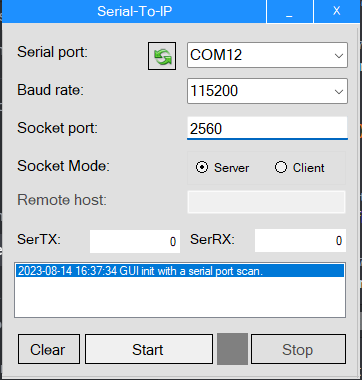
- start SerialToIPGUI
- Select the correct COM port for the command station
- Enter the port of
2560 - Click
Start
Once started...
- Open your WiFi throttle app on your Android/iOS/etc. device
-
On the connection screen/fields:
- Enter the IP address of your PC (The one running socat or SerialToIPGUI)
- Enter the port of
2560
-
Connect
This only supports a single connection at a time
This 'trick' only supports a single connection at a time. So it is important that JMRI (if you are using it), or the EX-WebThrottle, EX-Installer or Arduino IDE serial monitor, or anything else that might be using the COM (USB) port are shut down first.
Downloads
- SerialToIPGUI - https://sourceforge.net/projects/serialtoip/
- socat for windows requires downloading the 'cgywin' and installing the optional 'socat' package when you install - https://www.cygwin.com/
Troubleshooting (Windows socat)
In Microsoft Windows and using the command line socat, if you see a "command not found" error, Here is what you need to do to fix it:
- Right click on "My Computer" -> Properties -> Advanced -> Environment Variables
- Add a new environment variable, called
CYGWIN_HOMEand set its value toC:\cygwin - Edit the PATH environment variable and add
C:\cygwin\binto it (usually separated by a ';'). - Just click okay, exit any command prompts or bash shells (over cygwin) you may have open, and open it again - it'll work!
Note that if you installed cgywin to a folder other than C:\cgywin (e.g. c:\cgywin64), use that folder name instead in the change above.