Connecting a WiFi Throttle to your EX-CommandStation
Connecting Your Throttle (controller)
The instructions below refer to the Engine Driver Android app, but the principles described will be similar for all of the many other throttle apps Android, iOS, MS Windows and MacOS apps and other physical devices that work with EX-CommandStation.
Connect the Smart Device to the EX-CommandStation AP Network
The EX-CommandStation will power up in WiFi Access Point mode as configured out of the box, with its own unique WiFi network SSID of DCCEX_xxxxxx and password of PASS_xxxxxx (where xxxxxx is the last 6 digits of the MAC address of the EX-CommandStation), both of which will be visible on the OLED display (or Serial Monitor log). After it boots you can connect with a WiFi throttle like Engine Driver or ThrottleCard.
This quick start covers initial testing with the Engine Driver app, though it is a broadly similar process when using any other throttle app on a Smart device.
For a USB Connection with EX‑WebThrottle or JMRI and a computer, please see the full EX-CSB1 technical manual.
Access Point (AP) mode creates a separate WiFi network on the Command Station itself, whereas Station (STA) mode allows the Command Station to join as a WiFi device on your home or layout WiFi network. We have the EX-CSB1 set to default to Access Point (AP) mode for the convenience of being able to get up and running quickly.
To configure your EX-CommandStation to connect to your home network, see WiFi Configuration.
The WiFi LED will illuminate once WiFi is configured and ready as an Access Point (or Station if reconfigured for STA mode.)
In your smart device's system WiFi settings, select the network settings and find an available network that begins with 'DCCEX_'.
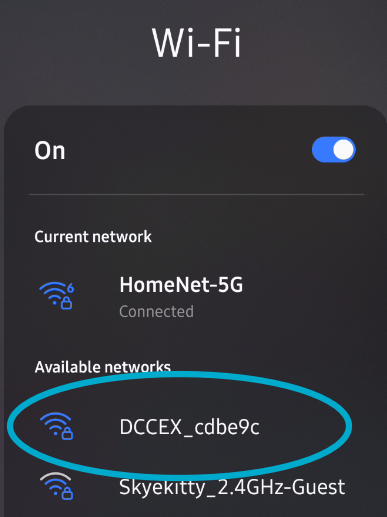
Smart Device Available Network Screen
Click on that network to see the next screen to enter your password. Notice the password is just 'PASS_' followed by the same 6 digits in the network name (called a 'SSID').
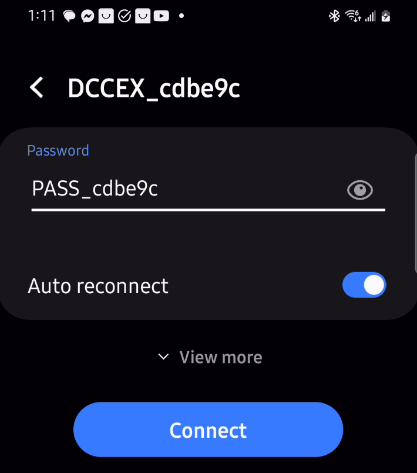
Smart Device AP Password Entry
Run the Engine Driver Setup Wizard
Open the Engine Driver app on your Android smart device:
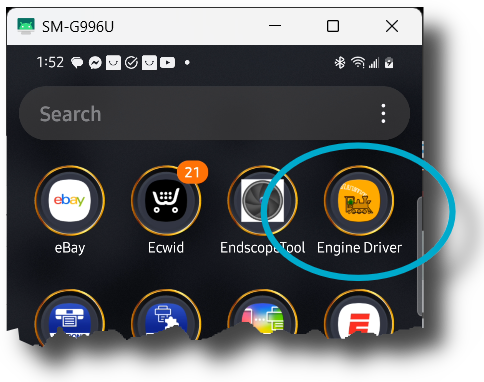
Engine Driver App Icon
The very first time the app is launched the 'Welcome to Engine Driver' Intro/Setup Wizard is shown. The wizard will ask to grant the app the required permissions and allow you to select some basic preferences for the theme and throttle layout.
If you have already used Engine Driver, you can run the wizard again at any time from the app menu (from the 'Connection' screen only). Any settings from previous runs of the wizard will be maintained.
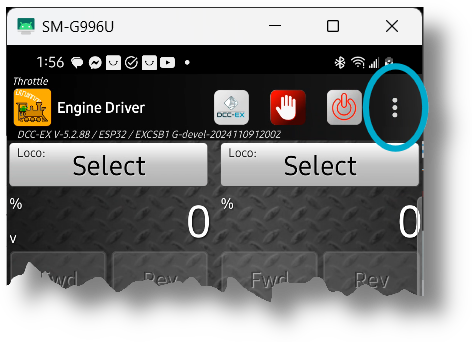
Engine Driver App Menu
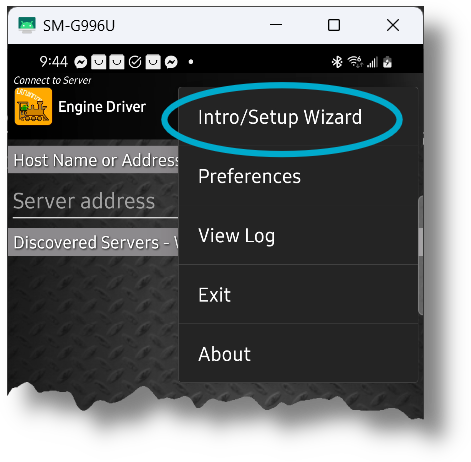
Engine Driver Intro/Setup Wizard
The Wizard allows you to set or change appearance options and, most importantly, choose to use DCC-EX Native Commands instead of wiThrottle Protocol:
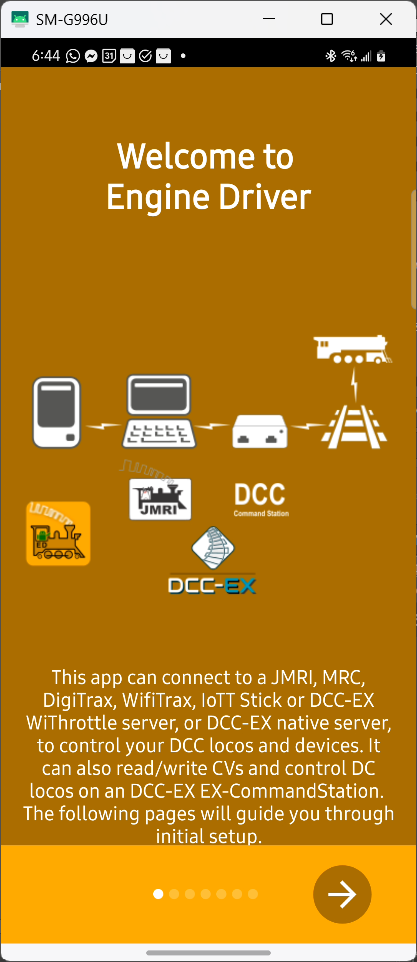
Engine Driver Wizard Opening Screen
Scroll through the other screens setting your preferences until you get the the DCC-EX screen and make sure to select the option to use an EX-CommandStation.
This setting will automatically add useful buttons and switch to using the DCC-EX Native Commands instead of wiThrottle Protocol (you can always switch back and forth if you need to connect to a WiThrottle specific device):
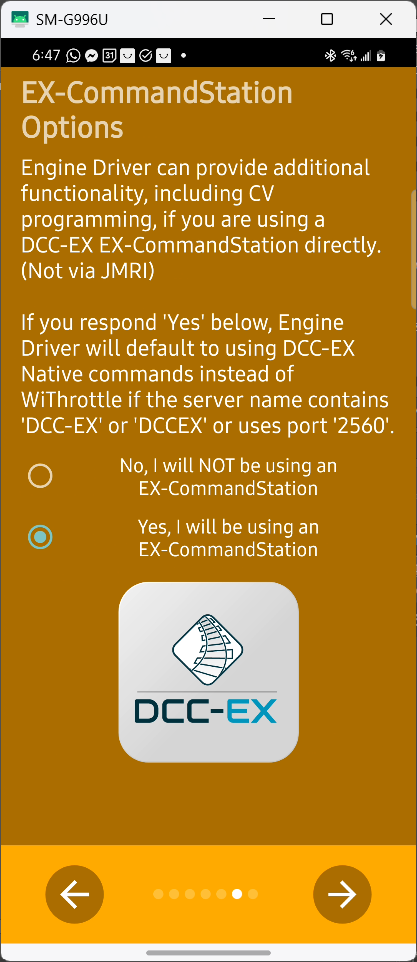
Engine Driver Wizard DCC-EX Select
After choosing the DCC-EX option above and pressing the checkmark to finish the Wizard, the opening Engine Driver screen will change to look like Figure: DCC-EX Protocol Bottom Selector below with an added option at the bottom of the screen for 'Connection Protocol'.
'Auto' for Automatic is now the default.
You can manually switch between DCC-EX Native Protocol and wiThrottle Protocol if you go to a club or use another type of Command Station that requires the wiThrottle Protocol, but generally the 'Auto' setting will do so automatically.
The DCC-EX Native Protocol allows for more powerful, expanded capabilities when connected to an EX‑CommandStation:
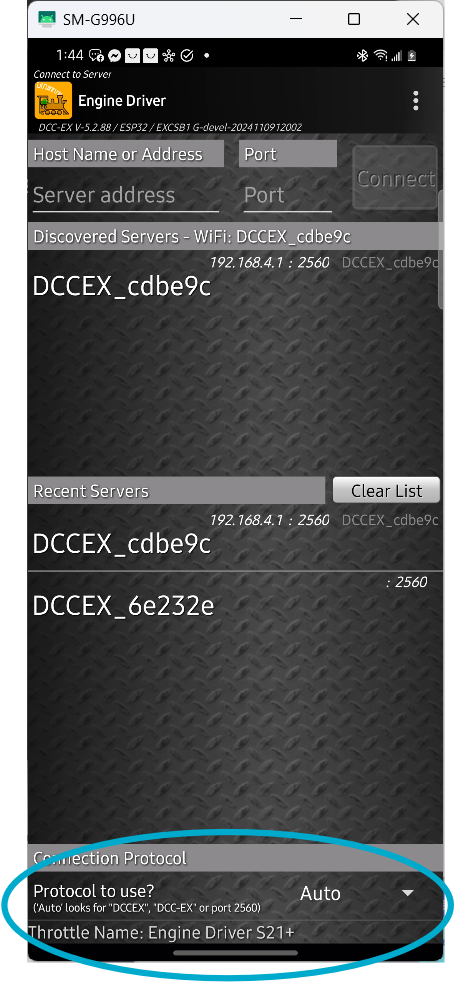
DCC-EX Protocol Bottom Selector
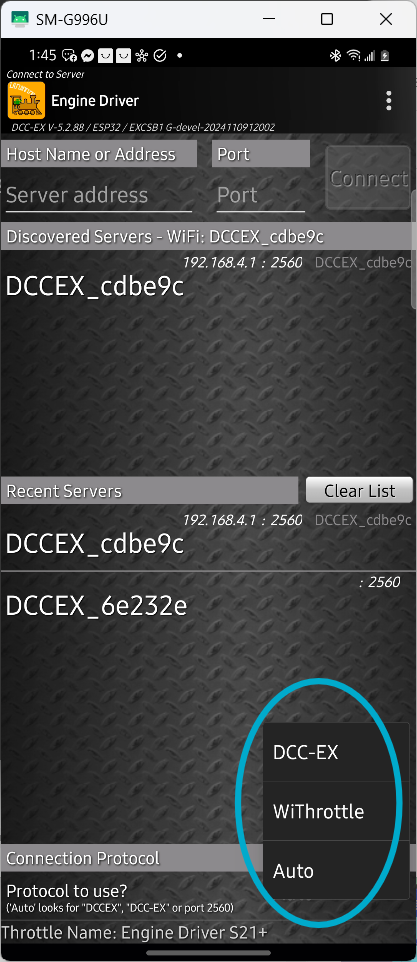
DCC-EX Protocol Men
Connect Engine Driver to EX-CommandStation
Engine Driver should find the Command Station automatically and show it's SSID in the 'Discovered Servers' List. Simply select yours by clicking on it. The last 6 characters of the SSID will be unique to your Command Station.
If the list is empty, try entering it manually by putting 192.168.4.1 in the 'Server Address' and 2560 for the 'Port'. If that still does not work, see the Section on WiFi here todo XXX.
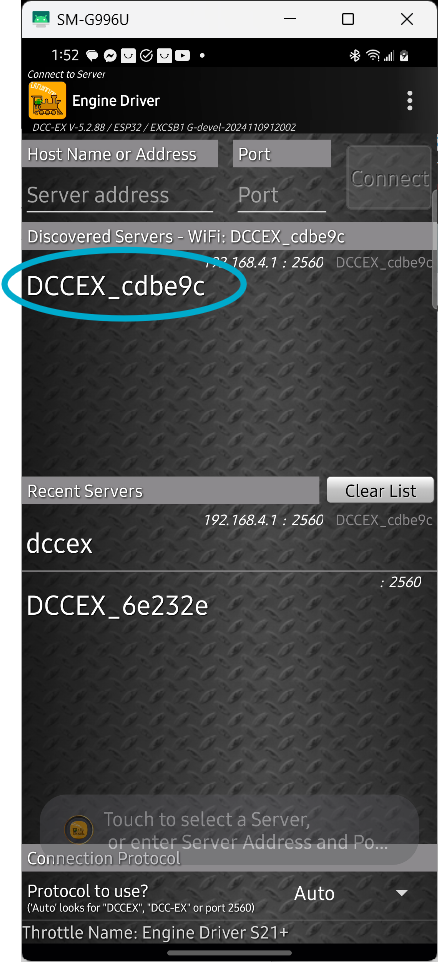
Command Station Connect
Acquire Your Loco
Once you have connected to your command station, the next screen will display the throttle controls. They will be greyed out until you select a loco to control.
Press the select button and enter the address for your loco. Here you can see we are acquiring loco 3 (the default address for almost all locos as they come from the box).
(Once you are happy that your EX‑CommandStation is fully functioning you can change the DCC address of your locos using these instructions.)
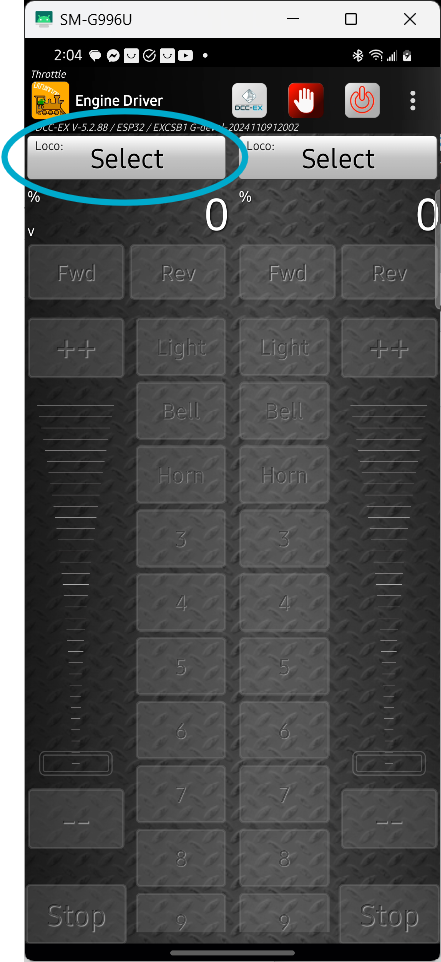
Press Loco Select Button
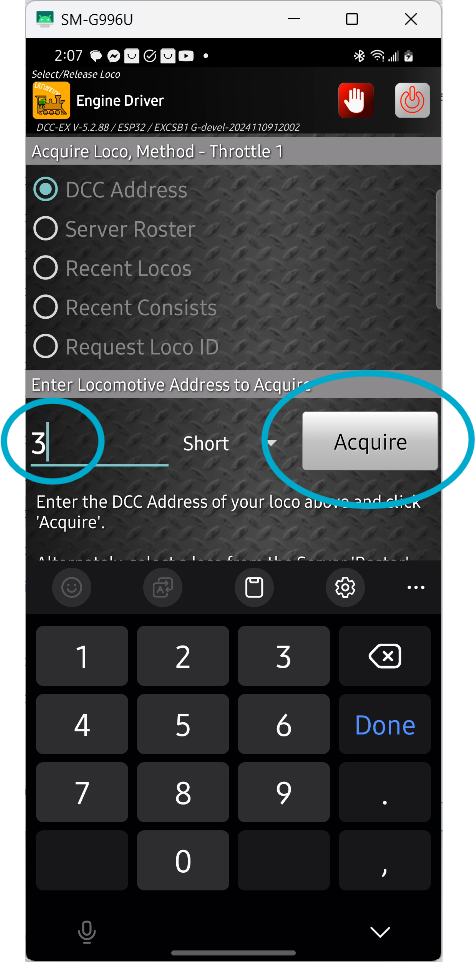
Acquire Loco by its address
The throttle screen reappears and the controls are active. You will also see 3 icons at the top of the display, a special DCC-EX button, an 'emergency stop' button, and a 'track power' button.
Press the red 'power' button to turn on the track power, the button should turn green and your track power should be on (the track output LEDs on your motor driver should light).
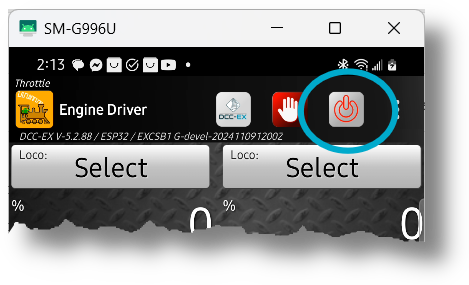
Turn On Track Power
Run Trains
Move the slider control up slowly, operate the horn and light buttons, and you should be running trains!
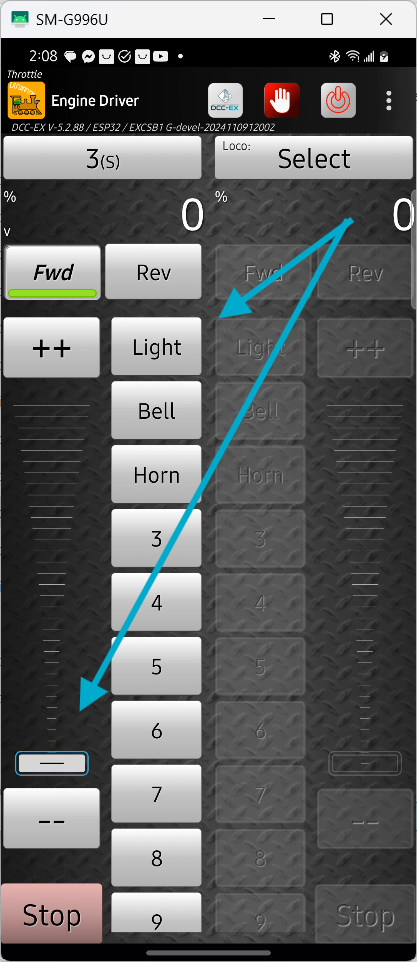
Operate Controls to Run trains