Connecting EX-Toolbox to your EX-CommandStation
WiFi Connection
Please remember that to connect to a WiFi EX-CommandStation on the correct WiFi network.
-
If you are running your EX-CommandStation in Access Point (AP) mode, you must switch your phone or tablet WiFi to the access point / WiFi network/SSID that the EX-CommandStation has created.
-
If you are running your EX-CommandStation in Station (STA) mode, you must switch your phone or tablet WiFi to your home access point / WiFi network/SSID. that same one that the EX-CommandStation is connected to.
Direct USB / USB OTG
As of Version 0.1.35 of EX-Toolbox, the discovered server list will also include an entry DCC-EX-USB-OTG if you have a EX-CommandStation connected directly to your phone or tablet using a USB on-the-go (OTG) cable.
Notes
- The direct USB connection is only supported on Android devices that support USB on-the-go (OTG).
- In general USB-C to the USB-C cables are automatically OTG, but if you are using a USB-C to USB-A cable, you will need to check that the cable supports OTG. If it doesn't, the 'DCC-EX-USB-OTG' entry won't appear in the discovered server list.
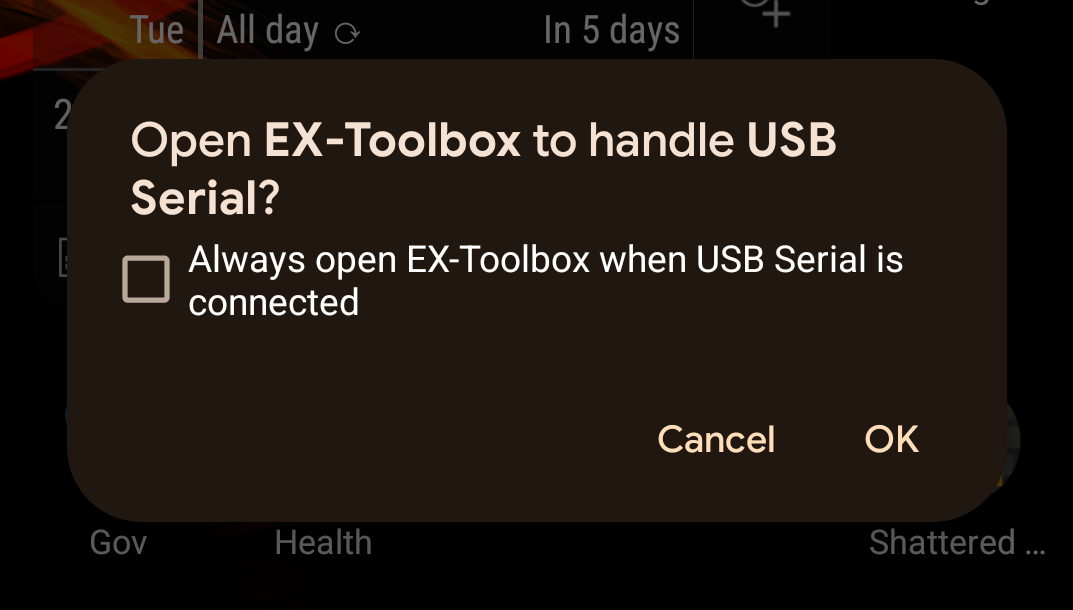
- Anytime you connect any USB device to your phone or tablet, you will likely get a pop up asking if you want to allow EX-Toolbox to access the USB. IF you connect devices other that an EX-CommandStation to your phone or tablet, just cancel the pop up, but if you only connect an EX-CommandStation you can check the box to always open EX-Toolbox.
Starting EX-Toolbox
Other than the very first time you start EX‑Toolbox, when the app opens you will be shown the 'Connection' screen.
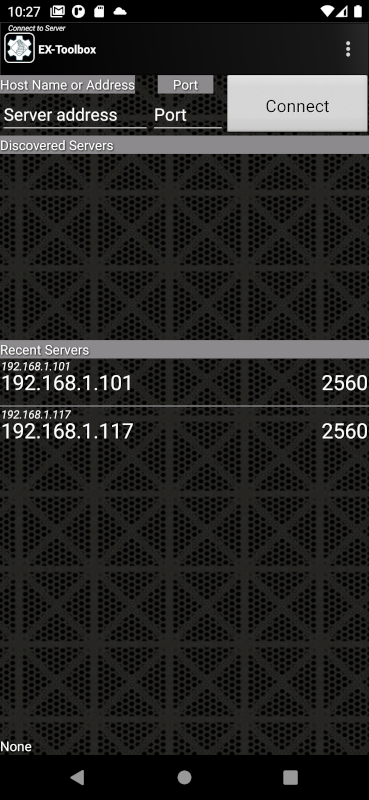
There are three ways you can select an EX‑CommandStation to connect to:
-
IP Address and Port
To find your EX-CommandStation's IP address and Port refer you original setup or, if you have a OLED screen on your EX-CommandStation the details will be displayed on it. The port will normally be 2560. -
Discovered Servers
If the server you want to connect to is in the list, simply click on it and you will be taken to the 'CV-Programming' screen. This includes via a direct USB connection. -
Recent servers
If the server does not appear in the recent list try one of the other two methods. Your server not appearing in the recent list is not necessarily a problem and there can be a number of reasons why.
Notes
-
Important! EX‑Toolbox can only connect directly to an EX‑CommandStation or JMRI's 'DCC++ over TCP Server', however JMRI, the EX‑CommandStation and other devices and apps can, or do, advertise as "WiThrottle" mDNS services. EX-Toolbox cannot determine which are actually direct connections to an EX‑CommandStation or JMRI's 'DCC++ over TCP Server'.
-
If you only ever connect to one EX‑CommandStation you can effectively bypass this screen by setting the 'Auto-Connect to WiThrottle Server?' preference.
-
Direct USB connection
As of Version 0.1.35, the discovered server list will also include an entryDCC-EX-USB-OTGif you have a EX-CommandStation connected directly to your phone or tablet using a USB on-the-go (OTG) cable.
The direct USB connection is only supported on Android devices that support USB on-the-go (OTG).
In general USB-C to the USB-C cables are automatically OTG, but if you are using a USB-C to USB-A cable, you will need to check that the cable supports OTG. If it doesn't, theDCC-EX-USB-OTGentry won't appear in the discovered server list.
Follow the User Guide