Testing your installation
Ways you can test your EX-CommandStation include:
- Testing use EX-WebThrottle
- Testing over WiFi with a Smart Device
- Testing with a Serial Monitor
Testing with EX-WebThrottle
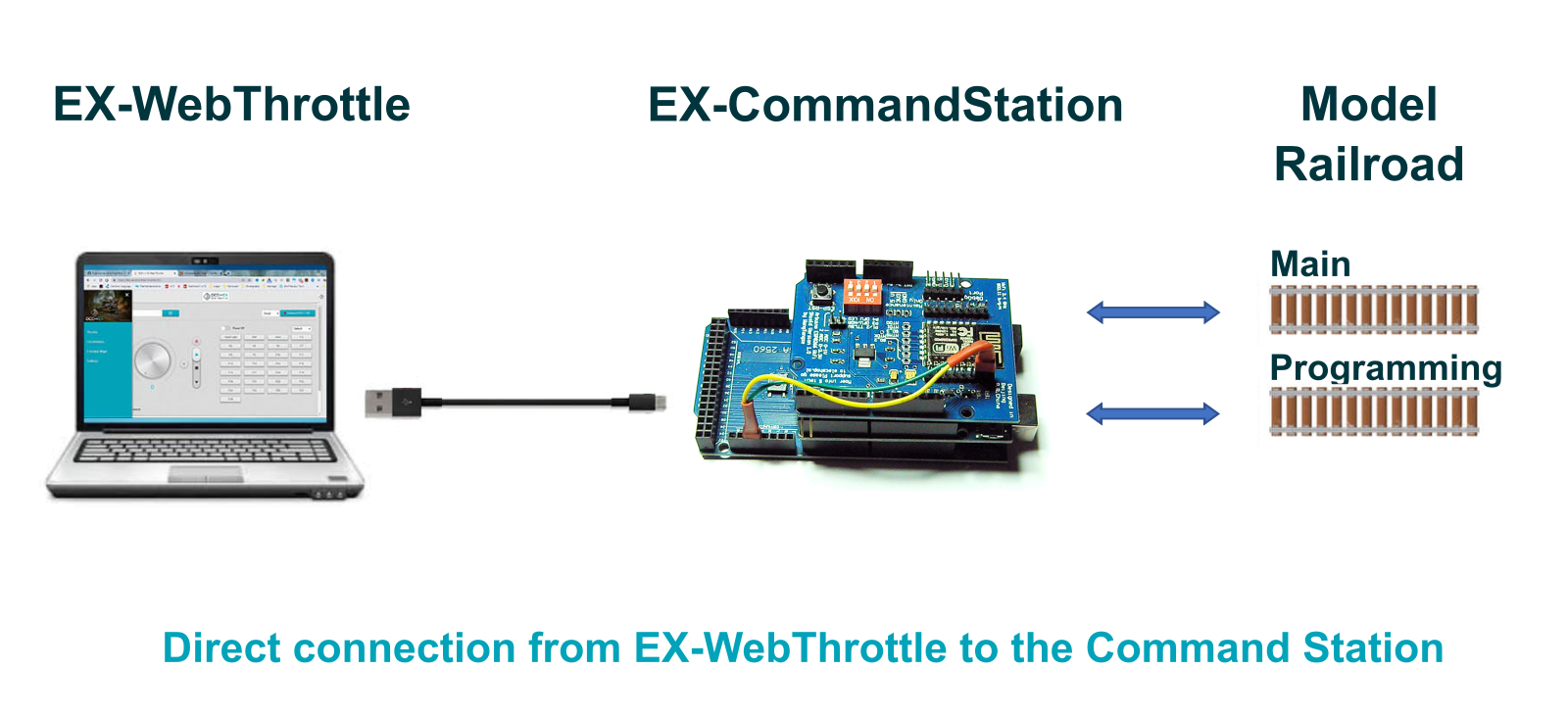
Connect Everything:
- Disconnect the EX‑CommandStation from the computer (that you used to load the software)
- Connect wires from the MAIN Terminals of the motor driver (output A) to your MAIN track
- Plug in the power supply for the motor driver only
- Reconnect the EX‑CommandStation to the computer
- Wait for about 30 seconds for the Command Station to run through its startup sequence
Programming Track
The programming track is for programming only. Make sure you are on the MAIN track if you expect your loco to move or respond to light or sound commands.
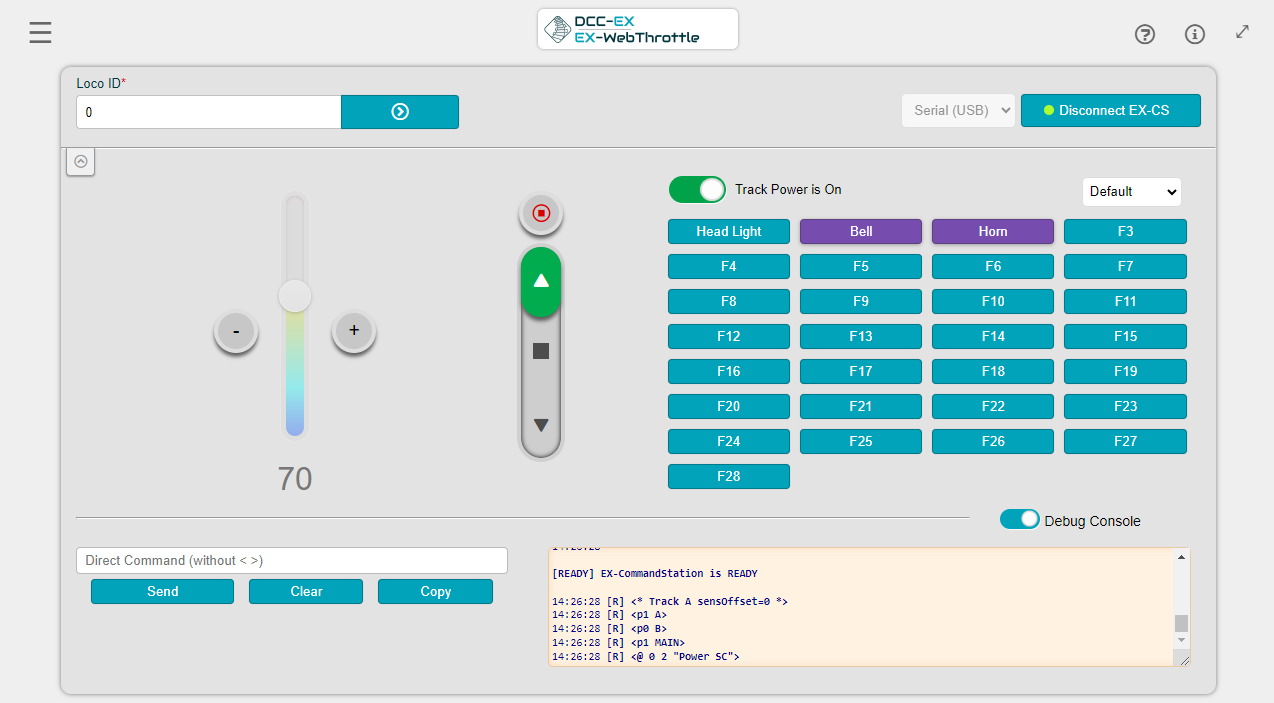
- Click this link and it will load a web page from our server that will run the web throttle on your PC
- Click on the
Serialdropdown button and selectSerial - Click on the
Connect EX-CSbutton -
If the program finds a compatible device
- It will open a popup a window showing you a selection.
It may show a line at the top such as
Arduino Mega 2560 (COM3). (The COM port will vary)- Click on your board to select it
- Then click the Connect EX-CS button
-
You should then be connected to the EX‑CommandStation and should see the response from the Command Station in the log textbox of the debug console at the bottom of the throttle window.
Make sure your debug console is open. If it isn’t, use the slider button in the lower left to open it. You can also open the DevTools window in your browser to see more developer logging
-
Once you are connected, you can:
- Enter the
<s>command in the “direct command” textbox to get status information from your Command Station. To do this just enters(without the quotes) and press the SEND button. - You should see
<iDCC++…>returned in the log window with your version, type of Arduino, type of motor driver, and some other information - Now you are ready to run trains!
- Place your loco on the MAIN track, a loco will NOT run on a programming track
- Click the Power Slider button to turn on power to your track
- You should see lights on your Either the 'Arduino Motor Shield R38' or 'Deek-Robot Motor Shield or EX‑MotorShield8874 and an indication that your loco has power
- Next go to the
Locomotive IDtextbox - Enter the DCC address of your loco
- Then press the
Acquirebutton - You should now have full control over your loco
- The circular control or vertical slider (chosen by the settings page) can be moved by clicking and holding down the mouse button and dragging, clicking at a spot where you want the throttle to move, or clicking the
+and-buttons
- Enter the
LEDs
If you did not see the LEDs light up, near the A and B outputs on the Motor Shield, try pushing down on the Motor Shield to make sure that the pins are properly seated into the Arduino.
Also see Connecting a USB Throttle to your EX-CommandStation or see EX-WebThrottle
Testing with a Smart Device over WiFi
DIY - Testing over WiFi
Testing over WiFi of an Arduino Mega Self Build (DIY) EX-CommandStation is only practical if you have installed a WiFi Shield as part of your build.
You can test your EX-CommandStation to some degree using a smart device (phone or tablet) running a throttle app. While this will tell you if it is working it provided limited capability for diagnosing problems if they arise. See Connecting a WiFi Throttle to your EX-CommandStation
The EX-ToolBox Android app also provides similar capabilities for testing over WiFi.
Refer to the how to connect via WiFi page for how to connect a smart device.
TODO MEDIUM - basic steps for initial testing with a Smart Device over WiFi. needs to be a cut down version of the /throttles/connecting-wifi.md page.
- connect A to track
- confirm track power is on (4 LEDS). Turn on if necessary.
- connect to the EX-CS WiFi in your smart device network settings (See throttle connecting page)
- open the throttle app and connect to the server (see appropriate page)
- put a loco on the track
- acquire the loco in the throttle app (see appropriate page)
- control the loco
TODO MEDIUM - what to do if any of the initial testing steps fail -->
Serial Monitors
The most direct testing method is to use a serial monitor to talk directly to the USB connection of your EX-CommandStation. This is a fundamental aspect of the Arduino system and thus avoids issues such as WiFi connections. Indeed, this is the only way to see what's going wrong if your problems are WiFi or Ethernet related.
There are several serial monitors available:
- Built in to EX-Installer
- Built in to the EX-WebThrottle
- Built in to JMRI or other train control software
- Built in to VSCode is you are using that as an IDE
- Built in to the Arduino IDE (Not recommended)
- built into the EX-ToolBox Android app
See Serial Monitors for more information.
Whichever you use, please ensure the baud rate is set to 115200 so that it matches that used by the EX-CommandStation. (Installer anf WebThrottle do this automatically)
Its important to note that only one program on your PC can be connected to the EX-CommandStation via USB. It is a common cause of error messages if you try and open a serial monitor when one of the other programs is still running.
In most cases, connecting a serial monitor causes the EX-CommandStation to restart.
Simple testing commands (Main track)
Commands are entered as shown, complete with the < > markers. Case is important because <T is a completely different command to <t
Check communication and version
<s> Will instruct the EX_CommandStation to provide information about itself
TODO LOW - pic - Check communication and version
Turn on track power
<1> will turn on all 4 leds that lie behind the track output sockets.
<0> Will turn the tracks off.
Move a loco
You can only drive a loco if you know the loco DCC address. For a brand new loco or decoder this is normally preset to 3. If you don't know the loco address, then you can find out using the simple programming commands.
Assuming you know the loco address is 3, the following commands may be useful:
<!> Emergency stop all locos
<t 3 50 1> Move loco 3 speed 50 forward.
<t 3 20 0> Move loco 3 speed 20 reverse.
<t 3 0 1> Stop loco 3 (decoder may stop loco realistically)
<t 3 -1 1> Emergency Stop loco 3
Test loco functions
<F 3 0 1> Turn on loco 3 function 0
<F 3 0 0> Turn off loco 3 function 0
Things to remember
The commands <t and <F will normally reply with a <l response when something about a loco is changed. This response is designed for throttles to share information and not generally for human reading.
A response of <X> indicates the command was not understood by the EX-CommandStation, so check your typing as <T and <f are not the same as <t and <F.
DCC generally has no way of knowing whether the loco exists, is listening or has dirty wheels. If you get no movement the first thing to do is check the track is clean.